What the API gives you
One request runs a full Lighthouse audit on Google's servers and returns everything the PageSpeed Insights website shows, plus a lot it doesn't:
- Category scores for performance, accessibility, best practices and SEO.
- Lab metrics such as Largest Contentful Paint, Total Blocking Time and layout shift.
- Every individual audit, with the exact files, elements and savings behind it.
- Field data from real Chrome users, when the site has enough traffic.
- A screenshot of the page as Lighthouse loaded it.
It doesn't need a browser on your side, which makes it ideal for dashboards, monitoring scripts and tools like mine.
Getting a key
You can call the API without a key, but you'll share an anonymous quota with everyone else doing the same, and in my testing that quota was simply used up. A key is free and takes five minutes:
- Create a project in the Google Cloud console.
- Enable the PageSpeed Insights API under APIs and Services.
- Create an API key under Credentials.
- Restrict it: limit it to the PageSpeed Insights API, and if you call it from a browser, to your website's address.
There's no billing involved. The default quota is 25,000 queries a day, with a per-minute limit on top, and you can see both on the Quotas page for the API.
Making a request
It's a single GET request. The parameters that matter are the URL to test, the strategy (mobile or desktop), and the categories you want. Category is repeated once per category:
const params = new URLSearchParams({ url: 'https://example.com/', strategy: 'mobile', key: API_KEY });
['performance', 'accessibility', 'best-practices', 'seo'].forEach(c => params.append('category', c));

const res = await fetch('https://www.googleapis.com/pagespeedonline/v5/runPagespeed?' + params);
const data = await res.json();

if (!res.ok) throw new Error(data.error ? data.error.message : 'PageSpeed request failed');
console.log(data.lighthouseResult.categories.performance.score); // 0 to 1
Expect each request to take 15 to 40 seconds, because Google is loading the page in a real browser. If you need both mobile and desktop, send the two requests in parallel rather than one after the other, and give them a generous timeout. I abort after two minutes.
Reading the JSON
The response is large (often half a megabyte), but you only need a few branches of it:
data.lighthouseResult.lighthouseVersion        // e.g. "13.5.0"
data.lighthouseResult.categories[id].score     // 0 to 1, for each category
data.lighthouseResult.categories[id].auditRefs // which audits belong to the category, with weights
data.lighthouseResult.audits[auditId]          // the detail for every audit
data.loadingExperience                         // field data for this URL (may be empty)
data.originLoadingExperience                   // field data for the whole site (may be empty)
Each audit has a title, a description (markdown, with links), a score, a displayValue like "Est savings of 1,520 ms", and a details object with the specifics.
The field you need to respect is scoreDisplayMode. Only some audits are pass or fail:
- binary and numeric audits have a real score.
- metricSavings audits are scored by how much time they'd save.
- informative, manual and notApplicable audits shouldn't be shown as passes or failures. Skip them or show them as notes.
The auditRefs also carry a group. Audits in the metrics group are the headline numbers, and audits in the hidden group are there for completeness; I leave both out of my list of issues.
The screenshot lives at audits['final-screenshot'].details.data as a base64 JPEG data URL, ready to drop into an <img>.
What the scores mean
Category scores come back between 0 and 1. Multiply by 100 for the familiar number, and use Google's bands: 90 to 100 is good, 50 to 89 needs improvement, under 50 is poor.
The performance score is a weighted blend of the lab metrics, which is why one slow image can drag it down so far. The other three categories are mostly the share of their audits that pass, weighted by importance.
Individual audit scores use the same scale, so I treat 0.9 and above as a pass, 0.5 and above as a warning, and anything lower as a failure.
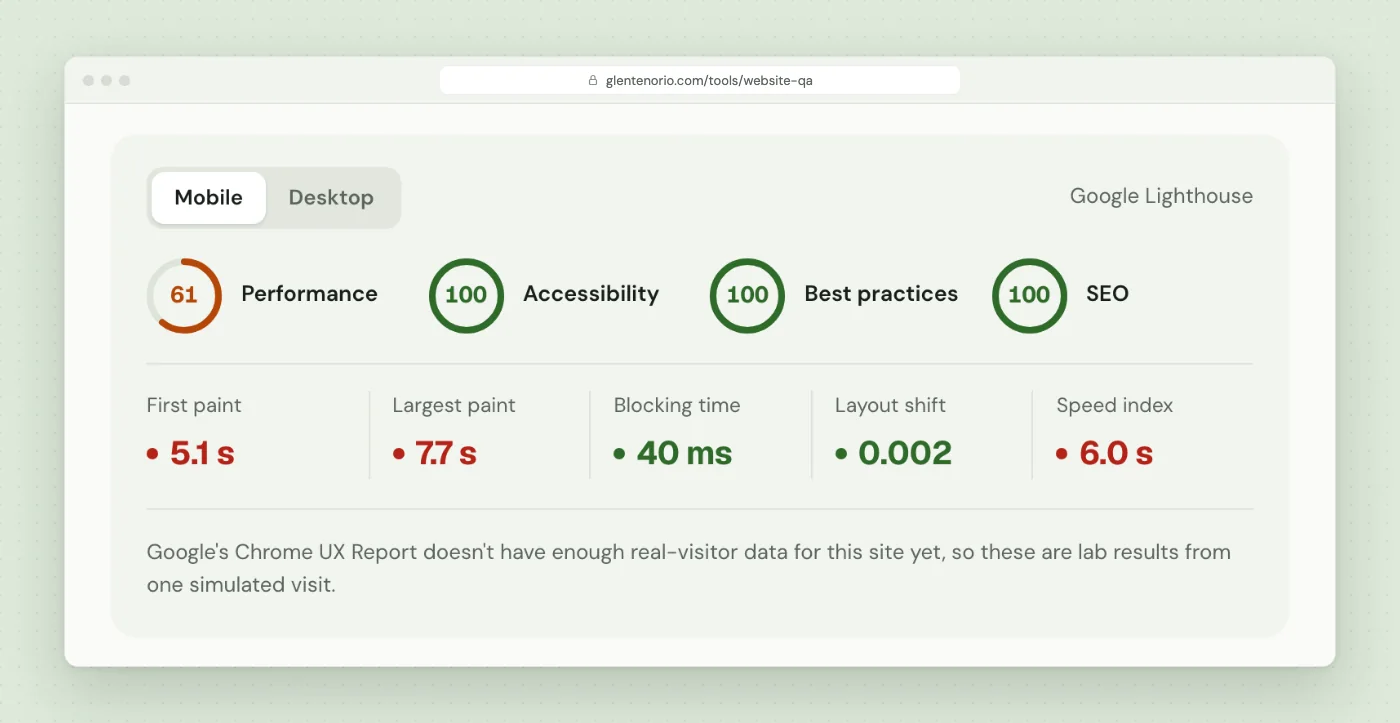
Lab vs field data
loadingExperience holds real-user data from the Chrome UX Report: the 75th percentile for each metric and a category of FAST, AVERAGE or SLOW. When a page doesn't have enough traffic, Google falls back to the whole site (origin_fallback is true), and when the site doesn't either, the metrics are simply missing.
Always handle the empty case. Most small sites won't have field data, and that's normal. I explain the difference between the two in more detail in Core Web Vitals for non-developers.
Traps I hit
A restricted key won't work locally
If you restrict the key to your website, Google checks the Referer header. On your own machine the referrer is http://localhost, so every call fails with:
403: Requests from referer http://127.0.0.1:8765/ are blocked.That's the restriction working. Test on the live site, or use a separate unrestricted key for development, and catch the 403 so your interface says what happened.
The keyless quota is shared, and usually empty
Without a key you get a 429 "Quota exceeded" response that has nothing to do with your own usage. Handle 429 explicitly and tell the user the speed test is unavailable rather than showing a generic error.
Lighthouse versions change the JSON
Google upgrades Lighthouse without warning. When it moved to Lighthouse 13, some audits started returning their details.items as nested objects instead of arrays. My code assumed an array, threw an error, and the whole report stopped rendering.
The fix was to treat every audit defensively, so one unexpected shape can only remove that one audit:
function auditItems(audit) {
  const d = audit.details || {};
  let items = Array.isArray(d.items) ? d.items : [];
  // "list" details nest tables; newer types nest objects, so skip those
  if (d.type === 'list') {
    items = items.flatMap(it => (it && Array.isArray(it.items)) ? it.items : []);
  }
  return items;
}

for (const ref of category.auditRefs) {
  try {
    render(audits[ref.id]);
  } catch (e) {
    // skip this audit, keep the report
  }
}
Some sites block Google's test browser
If the page can't be loaded, the API returns an error mentioning FAILED_DOCUMENT_REQUEST or NO_FCP. That usually means a firewall or a page that needs a login. It's worth a specific message, because it isn't a bug in your code.
Wrapping up
The PageSpeed Insights API is one of the most useful free APIs for anyone who builds websites. Get a key, restrict it, run mobile and desktop in parallel, respect scoreDisplayMode, and write your parsing as if the next Lighthouse version will surprise you, because it will.
If you want to see it in action, my Website QA tool uses it for every audit, and the build log explains how the rest of the tool fits around it.
Keep reading
Build Log: How I Built the Website QA Tool on This Site
How my free Website QA tool works: a PHP fetcher with SSRF protection, browser-side checks, Lighthouse via PageSpeed Insights, and the bugs I hit.
Read the post GuideCore Web Vitals Explained for Non-Developers (and What to Fix First)
What LCP, INP and CLS measure, what good looks like, lab vs field data, and the fixes that matter most, explained in plain English with a real example.
Read the post Free toolWebsite QA Audit
Paste a URL and get a full QA pass: speed, SEO, accessibility, security, broken links and content slips, with a fix for each issue.
Run an audit