Why I use a fixed checklist
By the end of a build I've looked at every page a hundred times. That's exactly the problem. I stop seeing the site and start seeing what I expect to see.
A fixed checklist fixes that. It doesn't care how tired I am or how close the deadline is. It asks the same questions every time, and the answer is either yes or not yet.
The list below is the same one I share as a free download on my resources page. It's split into six groups, and I don't ship until every box is green.
1. Content and copy
- No placeholder text. I search the whole site for "lorem", "ipsum", "sample" and "your text here". Page builders are full of demo content, and it hides in places like testimonial sliders and footer columns.
- Proofread. Out loud, ideally, or by someone who didn't write it. Headings get the most attention and the least proofreading.
- Real images. No stock placeholders, no gray boxes, and nothing still named
IMG_2034.jpgin the alt text. - Alt text on every meaningful image. Decorative images get an empty
alt="", which is a deliberate choice, not a missing one. - Contact details and opening hours. I check them against the client's Google Business Profile, because that's what customers will compare them with.
- Privacy policy and terms are live. If the site collects anything (a form, analytics, a pixel), it needs a privacy policy linked from the footer.
2. Design and responsive
Responsive testing is where a browser's device toolbar lies to you. It's a good start, but I always finish on real devices.
- Mobile, tablet and desktop. I check the in-between widths too, around 900 to 1100 pixels, because that's where layouts built for "mobile" and "desktop" quietly fall apart.
- Chrome, Safari, Firefox and Edge. Safari on an actual iPhone catches the most surprises: sticky elements,
100vhheights and form zoom. - No horizontal scroll on small screens. One element a few pixels too wide makes the whole page wobble sideways under a thumb.
- Favicon and touch icons. Small, but a missing favicon in a browser tab looks unfinished.
- Consistent fonts and colors. Builders make it easy to override the global style on one section and forget about it.
- Tap targets. Buttons and links big enough to hit with a thumb, with enough space between them.
3. Functionality
- Every internal link works. No 404s, and no links still pointing at the staging domain.
- Forms submit and arrive. I send a real test from every form and confirm it lands in the client's inbox, not mine and not spam.
- Form success and error states. I submit each form empty and with a bad email address. A form that fails silently is worse than no form.
- External links open correctly.
- A custom 404 page. And I check that a made-up URL actually returns a 404 status, not a normal page that says "not found".
- Buttons and calls to action. Every one of them goes where its label says.
4. Technical SEO
- A unique title and meta description on every page. Templates love to give every page the same one.
- Canonical tags pointing at the live domain, not staging.
- Open Graph tags, so a shared link shows a proper card with an image.
- An XML sitemap, generated and submitted in Google Search Console.
- robots.txt allows indexing. Staging should be blocked; production must not be.
- Old URLs redirected. On a redesign, every old URL that had traffic or links gets a 301 to its new home.
The robots check deserves its own moment. This is the staging robots.txt that sometimes survives a launch:
# staging: block everything
User-agent: *
Disallow: /
And this is what production should look like:
User-agent: *
Disallow:

Sitemap: https://example.com/sitemap.xml
On WordPress, I also check Settings, Reading, and make sure "Discourage search engines from indexing this site" is unticked. That one checkbox has hidden more launches than any bug I've written.
5. Performance
- Images compressed and sized correctly. WebP, at roughly the largest size they're displayed, not straight off a camera.
- Lighthouse and Core Web Vitals in the green, on mobile first. I explain what those numbers mean in Core Web Vitals for non-developers.
- Lazy loading on images and embeds below the first screen.
- CSS and JavaScript minified, and caching enabled.
6. Security and go-live
- HTTPS is live, and http redirects to https.
- The SSL certificate is valid and set to renew automatically.
- PHP is on a supported, patched version. Check it in WordPress under Site Health. My plain-English guide to the October 2026 PHP update explains why it matters.
- Analytics is installed and firing. I check the real-time report in GA4 while clicking around the live site.
- A full backup taken before the switch.
- DNS pointed and propagated.
- A final proofread on the live URL. Not staging. The live one.
Two quick terminal checks I run on every launch. The first confirms the http version redirects; the second shows the headers the live site actually sends:
# Should answer 301 with a Location: https://... header
curl -sI http://example.com | head -3

# Security headers, compression and caching on the real response
curl -sI https://example.com | grep -iE "strict-transport|content-security|x-content-type|cache-control|content-encoding"
The order I run it in
The groups above are how the checklist is organized. They're not the order I work through it. On launch day I go:
- Indexing first. robots.txt, the WordPress visibility setting and noindex tags. If search engines can't see the site, nothing else matters.
- Anything that breaks trust. SSL, forms, broken links and missing images.
- Content. Placeholder text, contact details and the proofread.
- Performance. Usually one or two heavy images.
- Everything else. Headers, polish and the small stuff.
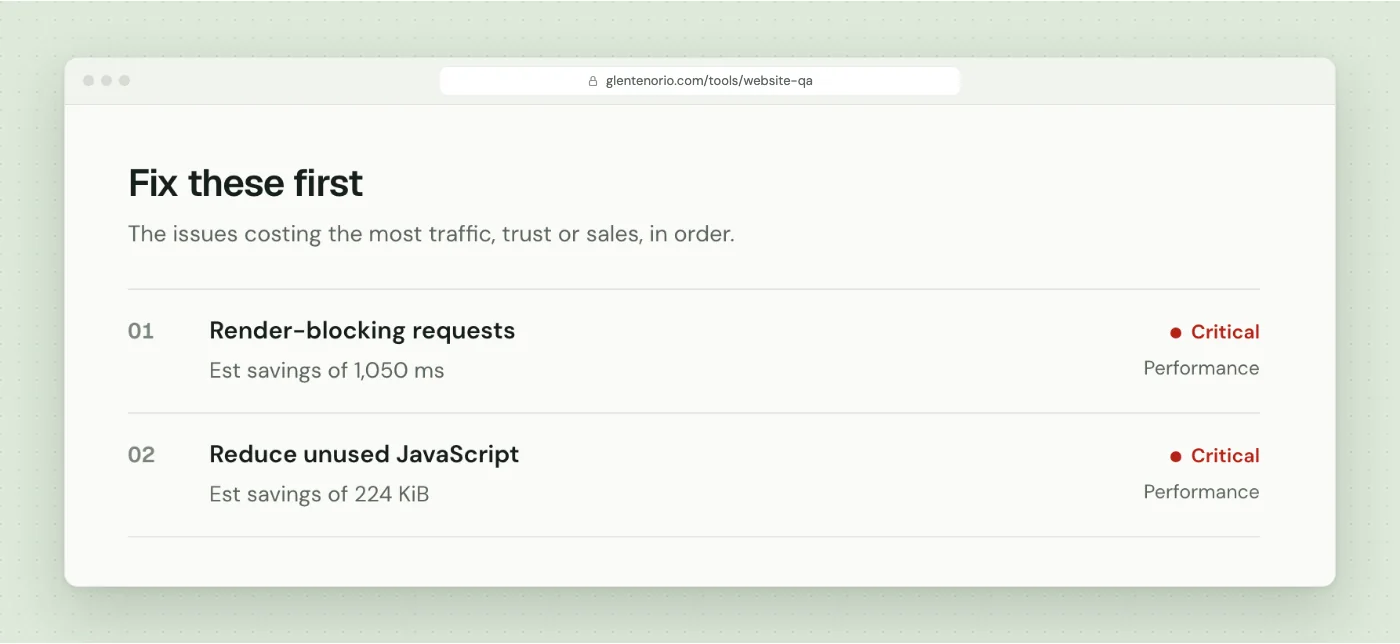
Most of the automated part of this list is now built into my free Website QA tool. I run it first, fix what it finds, then do the manual parts it can't see: real devices, real form submissions and reading the copy out loud.
Wrapping up
A launch checklist isn't about being thorough for its own sake. It's about catching the five-minute fixes before a client or a customer catches them for you.
Copy the list, change it to suit how you build, and run it every time. The sites where I was most sure I didn't need it are the ones where it found something.
Keep reading
PHP2Shell: The Critical PHP Security Update, Explained in Plain English
PHP2Shell (CVE-2026-109618 and CVE-2026-109619) explained in plain English: what happened, how to check your PHP version, and what to ask your host.
Read the post GuideCore Web Vitals Explained for Non-Developers (and What to Fix First)
What LCP, INP and CLS measure, what good looks like, lab vs field data, and the fixes that matter most, explained in plain English with a real example.
Read the post Free toolWebsite QA Audit
Paste a URL and get a full QA pass: speed, SEO, accessibility, security, broken links and content slips, with a fix for each issue.
Run an audit